The NOIA configuration screen is broken down in sections as follows:
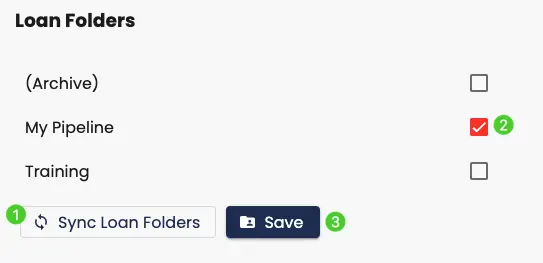
Loan Folders #
Because your company working files may appear in more than one folder, you can choose the loan folders that MortgageMind will search when looking for the loans that match an ECOA action. If your Loan Folders have changed or if you are configuring this section for the first time, follow these steps:
- Select the Sync Loan Folders button and wait until the process is complete.
- Select any check boxes that match the loan folders you wish to be pulled from
- Select Save when your selections are complete.
NOIA Action Notifications #
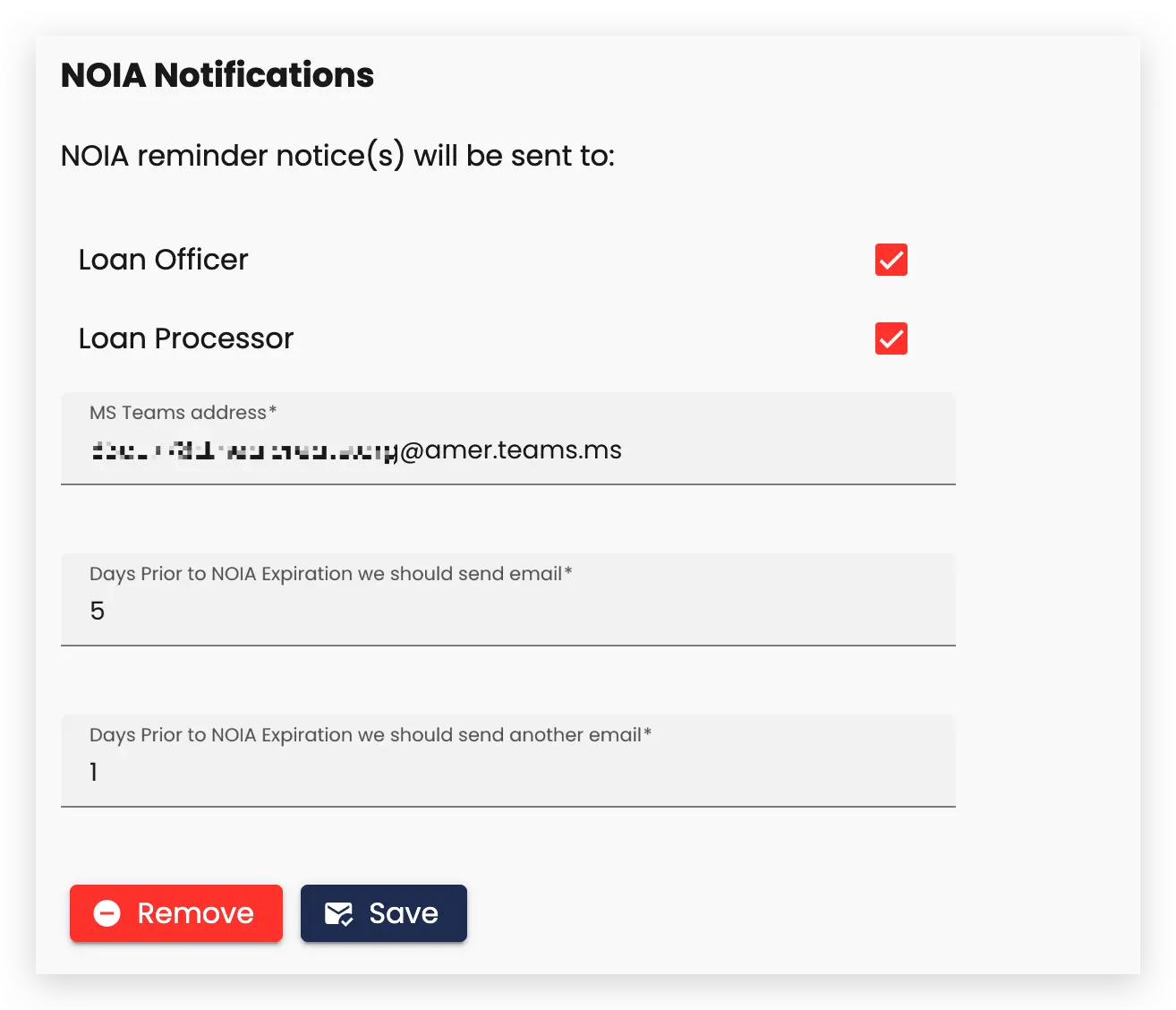
In this section, you can select the people or locations that you want the NOIA Action Notifications to be sent to.
Notification Destination #
The Loan Officer and Loan Processor that are included in the loan record, are available to be selected as individual recipients of the NOIA Action Notification. Your processes may only involve a Loan Processor handling NOIA actions, in which case you may select only the Loan Processor as a recipient of the NOIA Notification. In the case where you would prefer the notification be sent to a specific Microsoft Teams channel, you may include the Teams channel email address as the recipient.
Notification Timing #
You can select how many days in advance of the ECOA expiration date the NOIA notification should be sent to recipients selected in the previous step. One timing email should be identified, but more than one can be chosen. For example, you could choose to have the first email sent 5 days in advance of the ECOA expiration date and an additional reminder email sent 1 day prior to the expiration date.
NOIA Notification Sample #
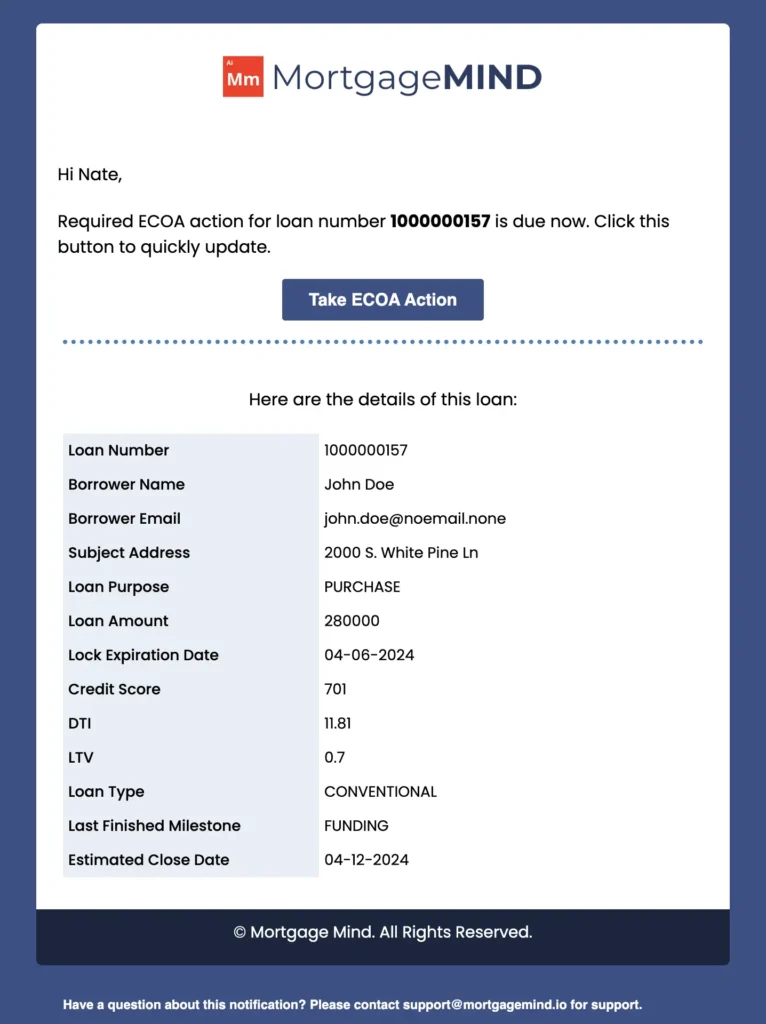
The NOIA notification includes some basic loan information and allows you to take quick action by clicking the button in the email or in the Teams notification. An example of a NOIA Notification is included below:
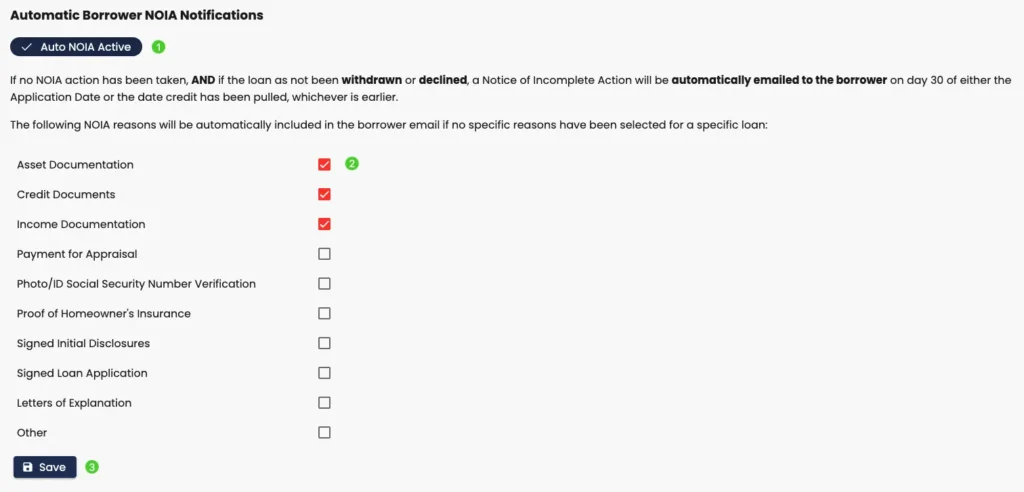
Automatic Borrower NOIA Notifications #
The MortgageMind application will allow you to setup an automatic Borrower Notification to be sent if no explicit NOIA action has been taken by a Loan Officer or another company representative. This ensures that NOIA compliance will be performed even if no one in the company takes action. Because most NOIA notices are for similar reasons, you can define one or more default NOIA reasons that will be included in the Automatic Borrower notification. Configure the Automatic Borrower NOIA Notifications as identified below:
- To turn Auto NOIA on or off, toggle the Auto NOIA button.
- If Auto NOIA is turned on, select the default NOIA reasons you would like to be included in the notification
- After you have made your selections, click Save