Use-case for Microsoft Teams Notifications #
Your company’s compliance workflow may include a dedicated Microsoft Teams Channel that compliance personnel use for handling compliance conversations and processes. You may elect to use the Teams Channel to monitor and disposition NOIA actions directly from this channel.
Prerequisites #
In order for NOIA Notifications in Teams to work, it assumes the following Teams settings for your organization:
- Users can send emails to a channel email address is turned on
- The mortgagemind.ai domain has been added to the authorized domains list
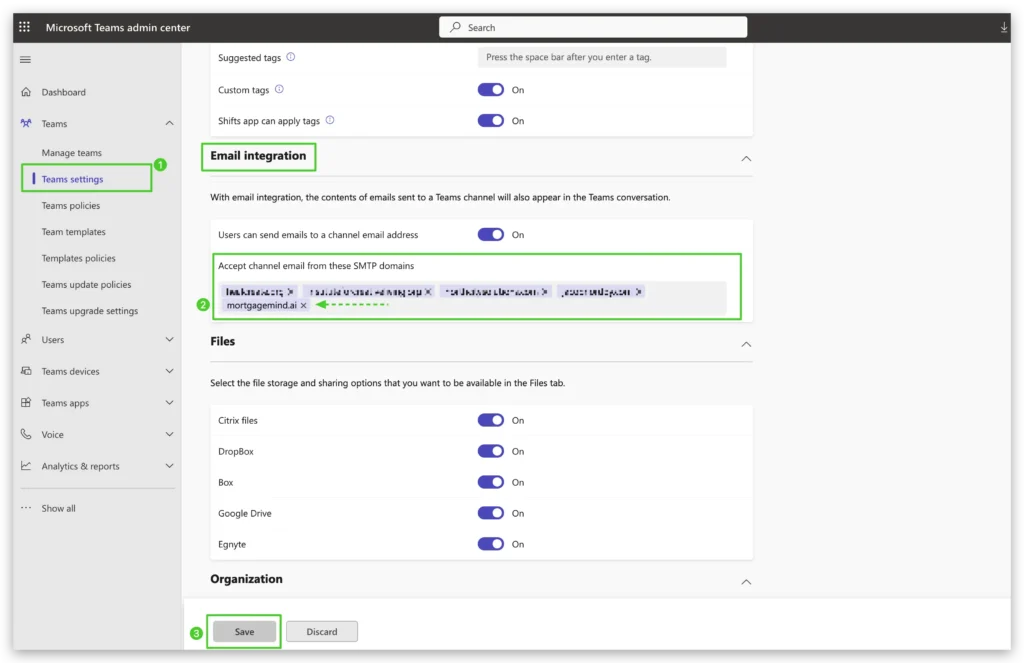
Microsoft Teams Configuration: https://admin.teams.microsoft.com/company-wide-settings/teams-settings
Setup steps #
If the prerequisites are met, Teams Channel notifications is very straightforward to configure and requires two parts to work correctly:
- Teams Channel setup
- MortgageMind configuration
Microsoft Teams Channel Setup #
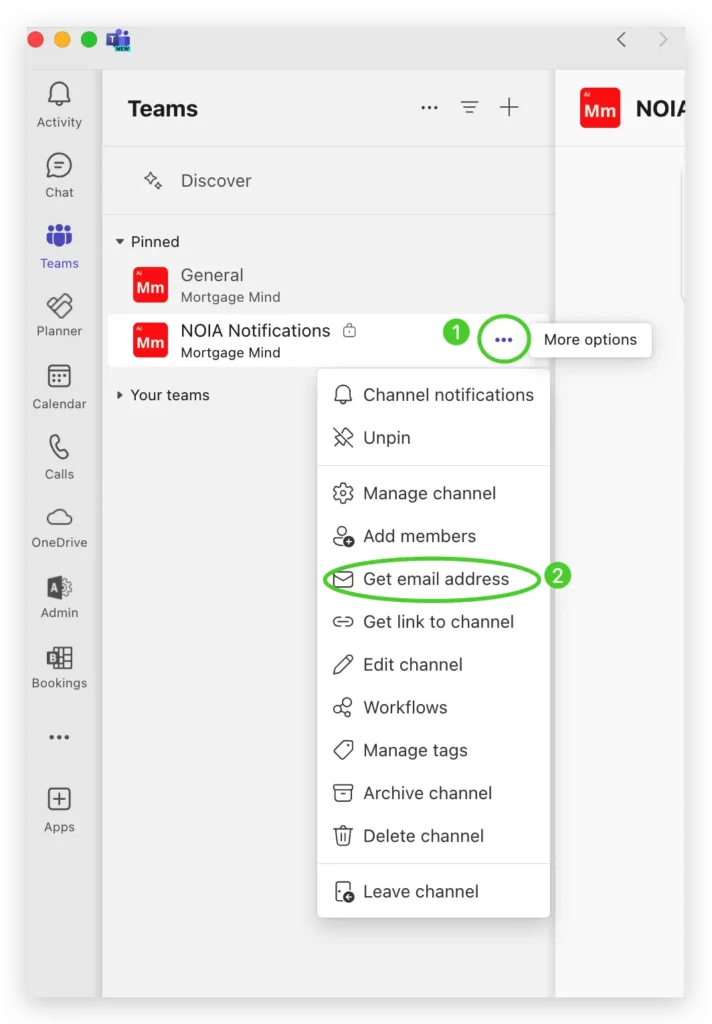
In Teams, go to the channel that will be receiving the notification, and (1) select the three dot menu and (2) navigate to Get email address as pictured below.
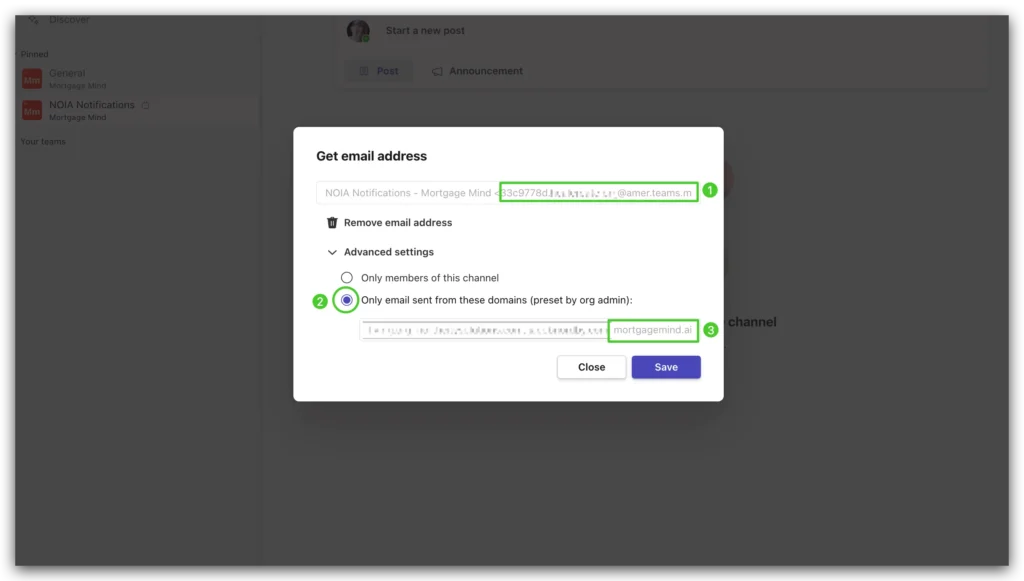
(1) Carefully copy the full provided email address making sure to copy the full path. (2) Under Advanced Settings, choose the Only email sent from these domains option. The mortgagemind.ai domain will need to be added by your Teams administrator as described in the Prerequisites. (3) Save your selections.
MortgageMind Setup #
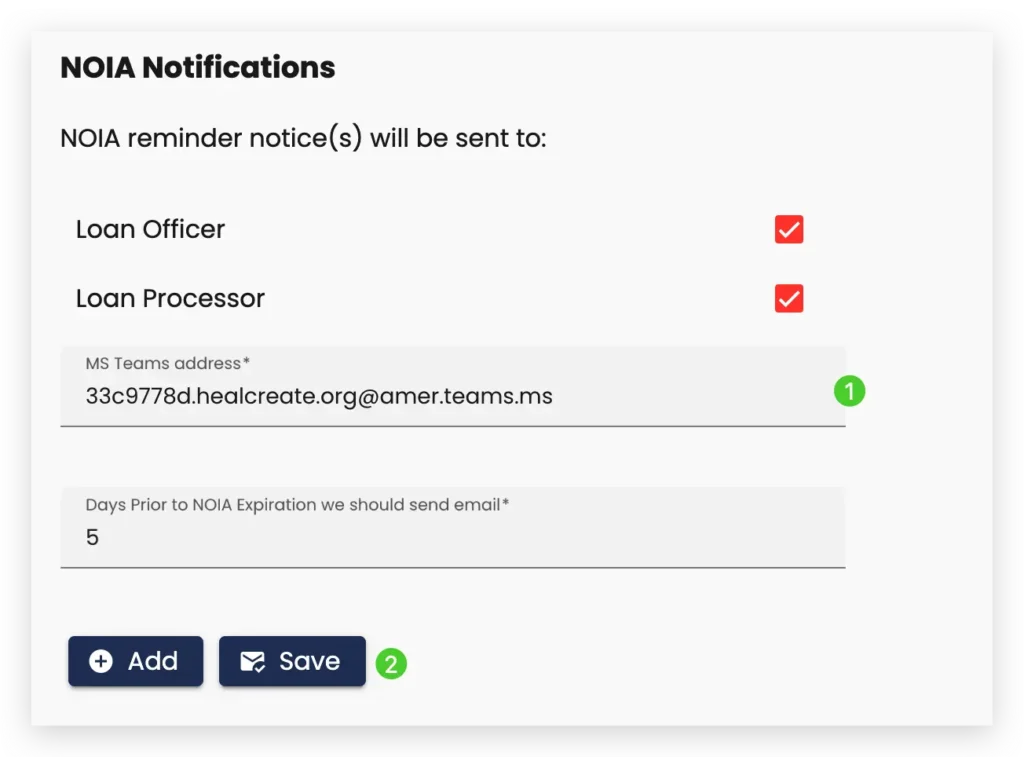
Navigate to the Configuration tab in your MortgageMind account and select the NOIA sub-tab. Scroll down to the NOIA Notifications section and (1) paste the channel address that was copied from the previous step. (2) Save your settings and you are all set. NOIA notifications will now appear in the channel.