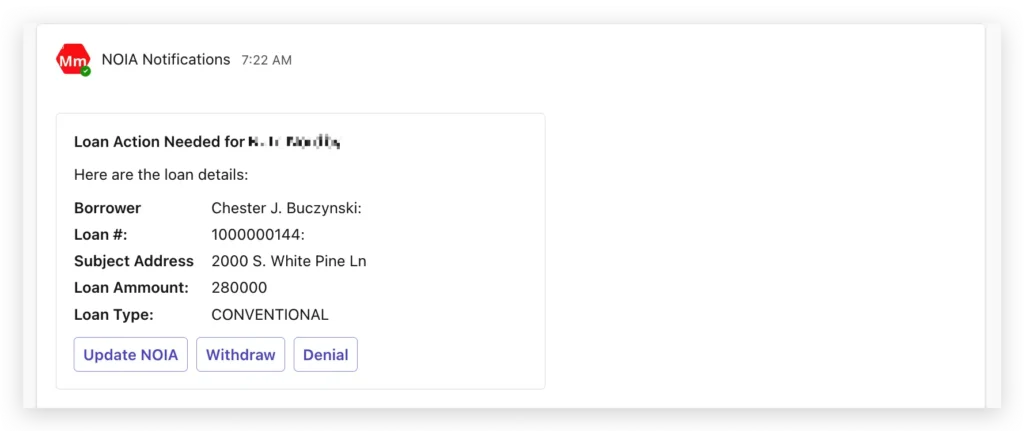
Use-case for Microsoft Teams notifications #
Your company’s compliance workflow may include a dedicated Microsoft Teams Channel that processors and/or compliance personnel use for handling compliance conversations and processes. You may elect to use the Teams Channel to monitor and disposition NOIA actions directly from this channel.
Setup steps #
Teams Channel notifications is very straightforward to configure and requires two parts to work correctly:
- Teams Channel configuration
- MortgageMind configuration
Teams Channel Configuration #
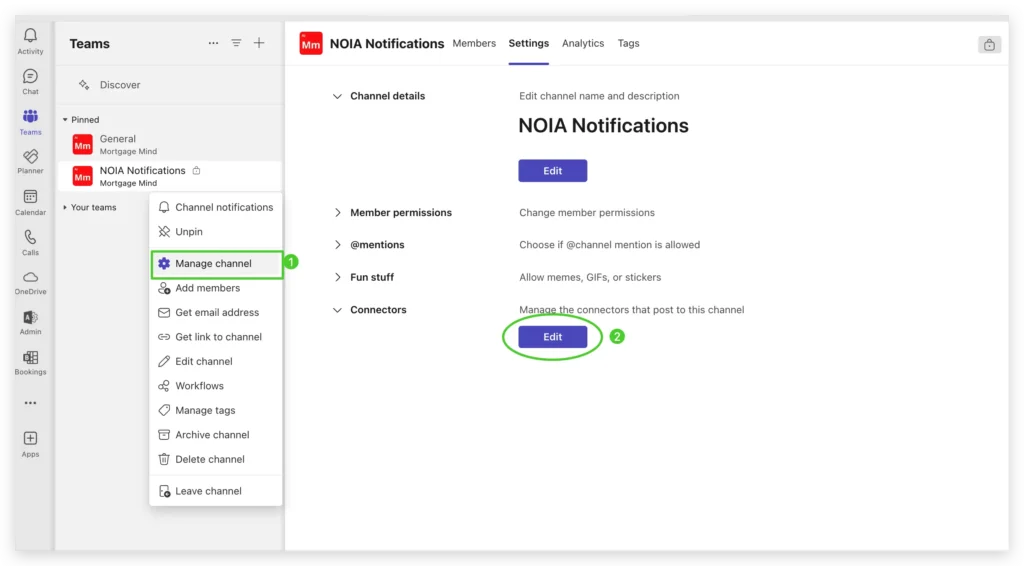
In Teams, go to the channel that will be receiving the notification, and select the three dot menu and select (1) Manage channel. Under the Connectors label, (2) choose Edit as pictured below.
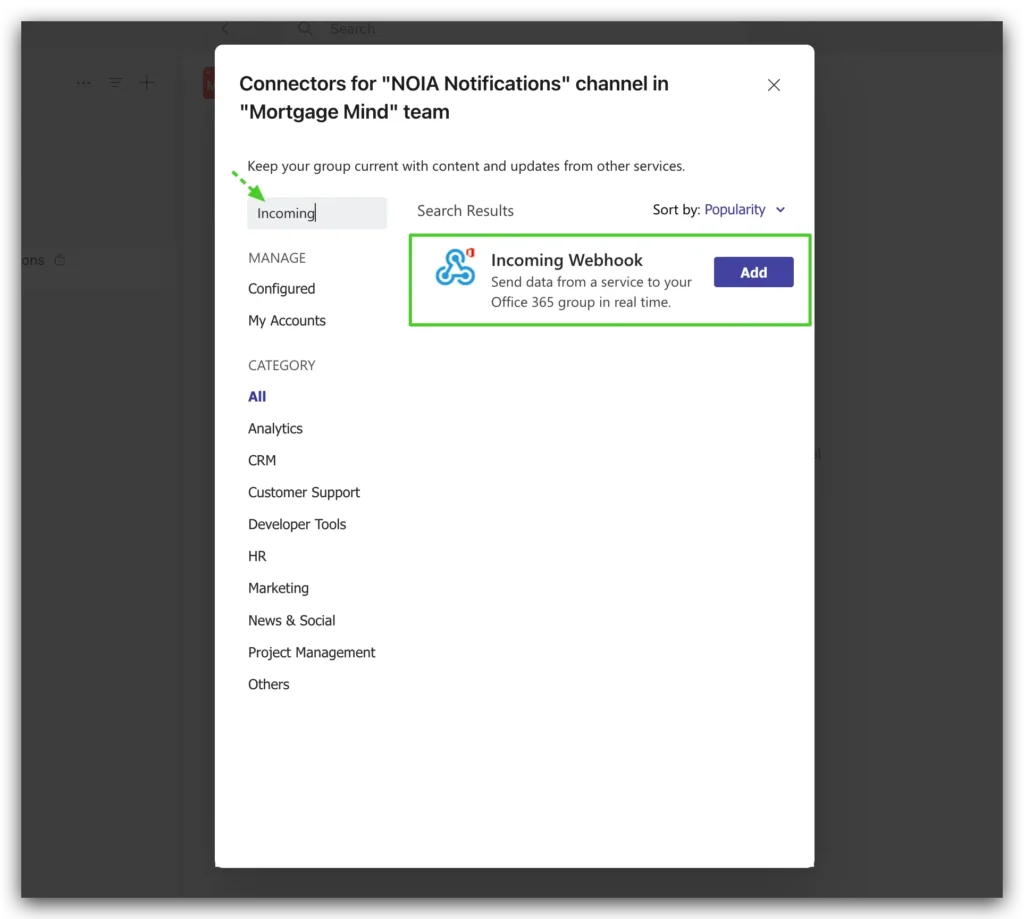
Search for Incoming Webhook and select Add.
Configure Webook #
Choose Add when the option is presented as shown below:
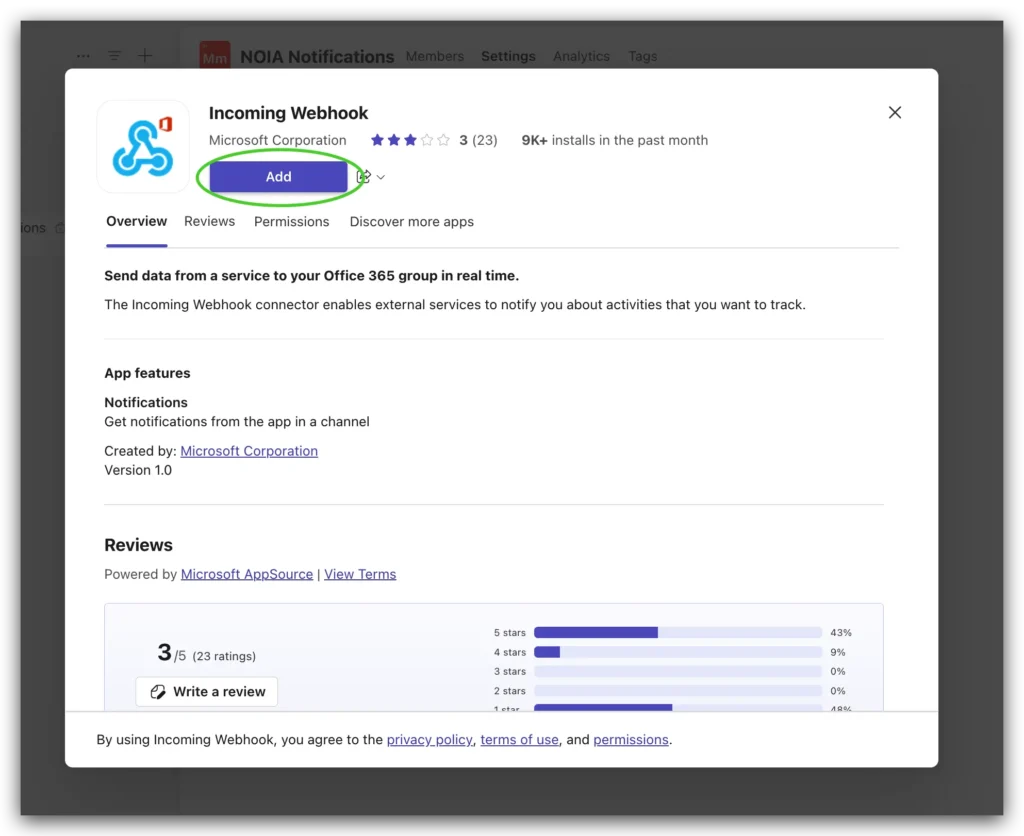
(2) Provide a name for the Incoming Webhook to help distinguish it from other webhooks that may have been previously configured for your organization. e.g. NOIA Notifications
You may elect to change the image that will be associated with the notifications that you receive in the Teams channel. This step is optional, but recommended to help distinguish these notifications if other webhooks have been configured for your channel. You can download the MortgageMind icon here.
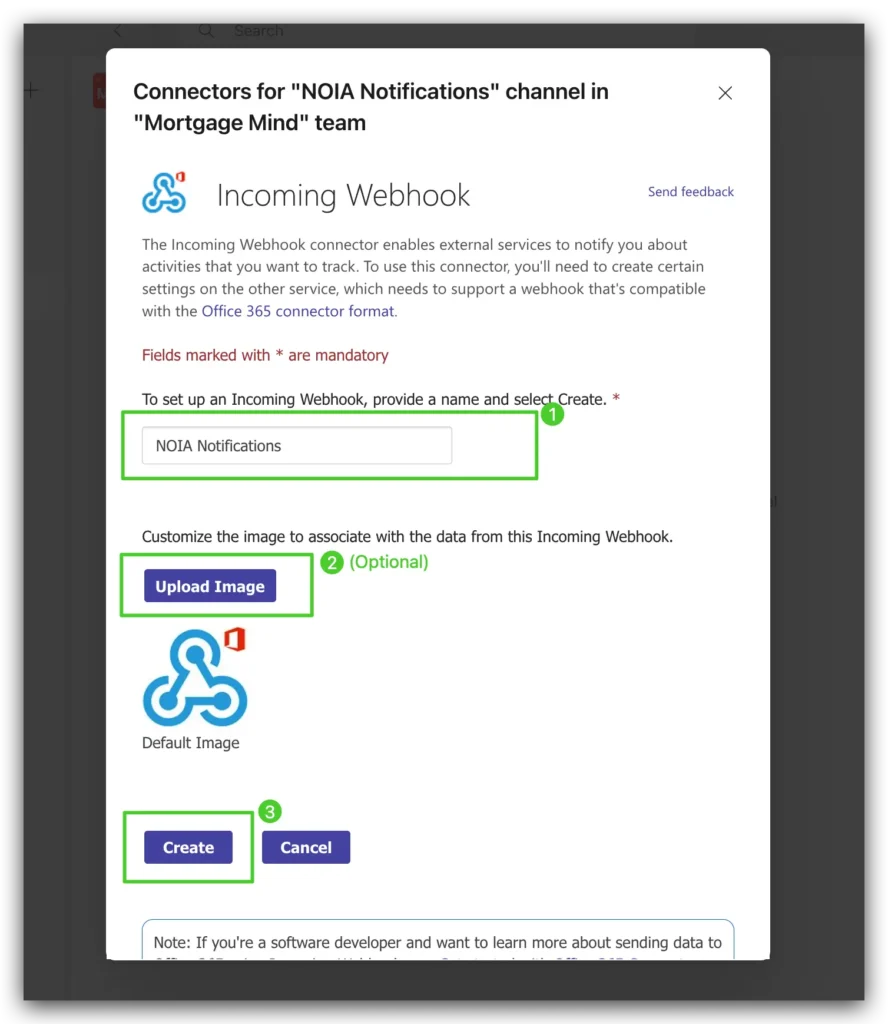
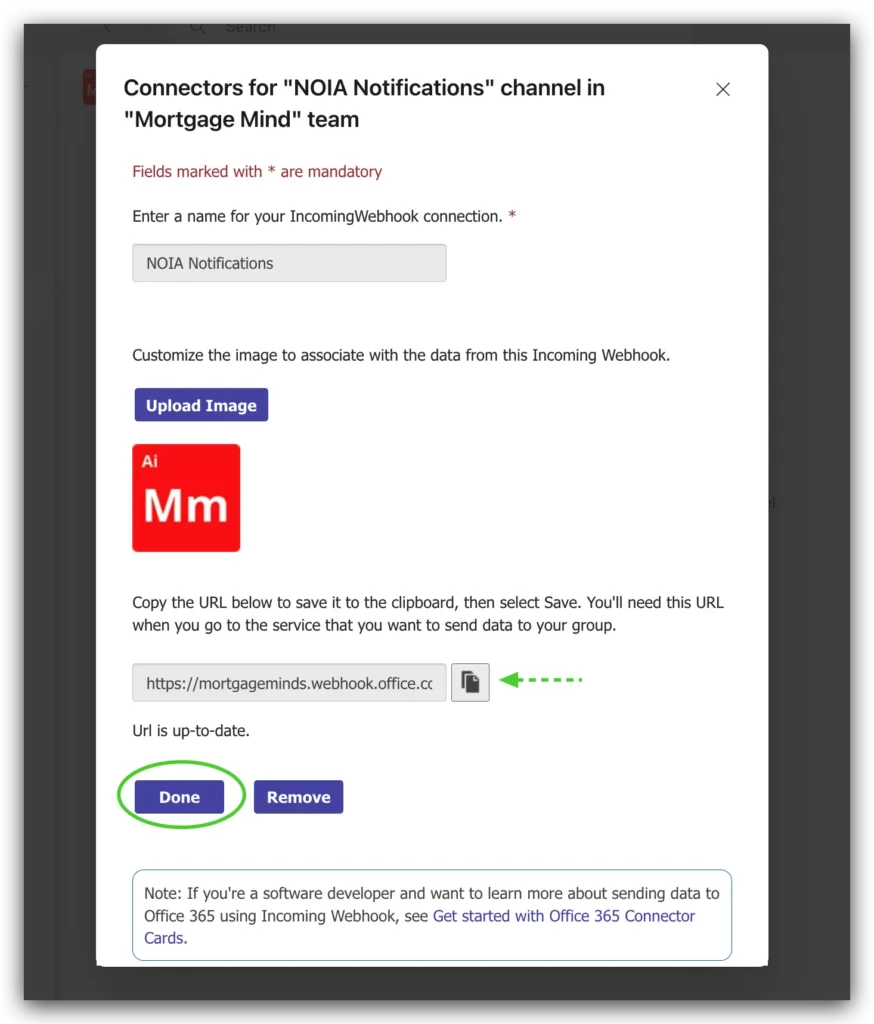
After clicking Create, you can copy the URL by clicking the Copy icon or selecting the text. Click Done and you’re now ready to paste this URL in your Mortgage Mind settings.
Update Your Mortgage Mind Account Settings #
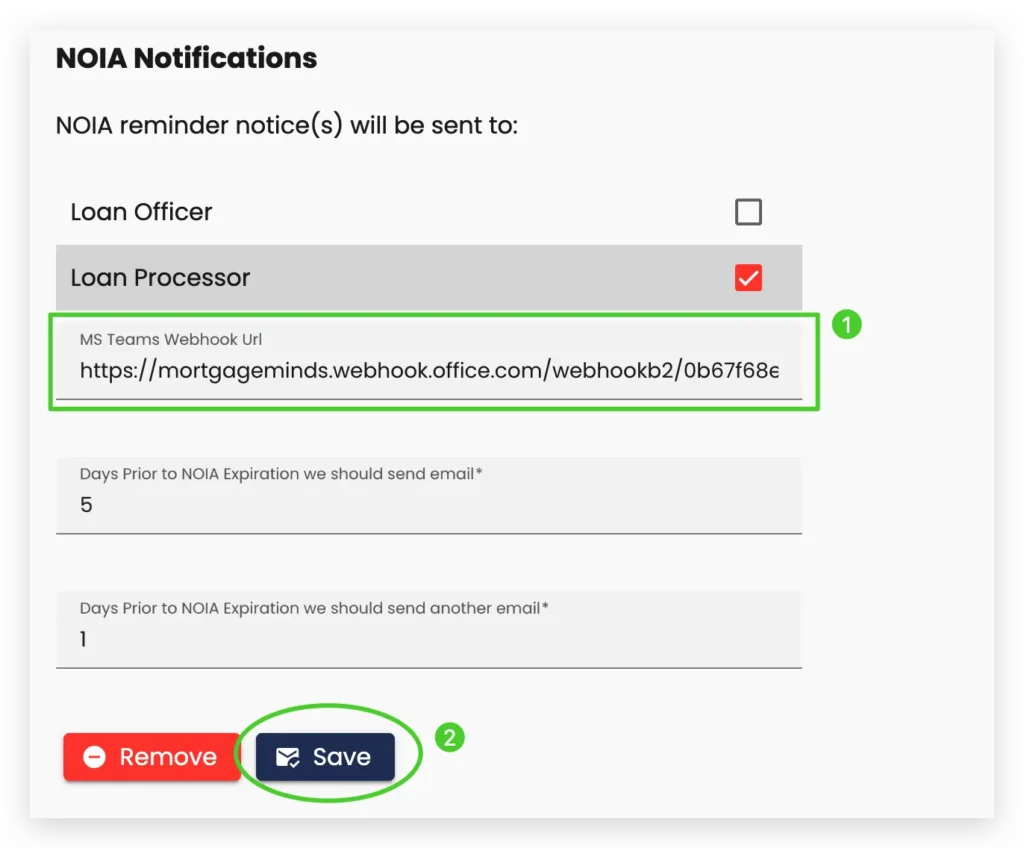
With the Teams webhook url copied, open your Mortgage Mind NOIA Configuration settings and go to the NOIA Notifications area. (1) Paste the URL copied from the previous step as shown below and (2) select Save.